Antivirenprogramm blockiert Webshots
Wenn Webshots keine Verbindung zum Internet herstellen kann, meldet, dass Ihr Fotoverzeichnis schreibgeschützt ist, oder sich seltsam verhält, liegt die Ursache fast immer bei einem Antivirenprogramm eines Drittanbieters (Avast, McAfee, Norton, AVG usw.), das Webshots fälschlicherweise als Bedrohung einstuft. Webshots selbst ist nicht das Problem – jede Version wird vor der Veröffentlichung im Microsoft Store und auf unserer Website von Microsoft auf Sicherheit geprüft.
Unter Windows 11 benötigen Sie kein Antivirenprogramm eines Drittanbieters
Microsoft selbst ist hier eindeutig: Windows 11 enthält Microsoft Defender Antivirus bereits ab Werk, er läuft automatisch und bietet den Schutz, den die meisten Menschen brauchen. Die offizielle Anleitung von Microsoft erklärt das: here →
Microsoft rät außerdem ausdrücklich davon ab, mehrere Antivirenprogramme gleichzeitig auszuführen – sie behindern sich gegenseitig, verlangsamen Ihren PC und verursachen genau die Art von Fehlalarm, die Webshots lahmlegt: here →
Und hier eine leicht verständliche Erklärung, warum sich ein kostenpflichtiges Antivirenprogramm eines Drittanbieters nicht mehr lohnt: here →
Einfachste Lösung: das Antivirenprogramm des Drittanbieters deinstallieren
Entfernen Sie Avast, McAfee, Norton, AVG oder welches Antivirenprogramm eines Drittanbieters Sie auch installiert haben. Windows Defender übernimmt automatisch, sobald es entfernt ist – Sie sind keine einzige Sekunde ungeschützt. Genau das empfiehlt Microsoft selbst, und es ist die einzige Lösung, die die Fehlalarme dauerhaft beendet.
Alternative: Webshots aus dem Microsoft Store installieren
Wenn Sie Ihr Antivirenprogramm behalten möchten, installieren Sie Webshots stattdessen aus dem Microsoft Store. Antivirenprogramme vertrauen Store-Apps automatisch, weil Microsoft sie unabhängig als sicher geprüft hat: here →
Es ist genau dieselbe Webshots-Anwendung – nur über einen Weg bereitgestellt, dem Ihr Antivirenprogramm bereits vertraut.
Alternative: Webshots zur Ausnahmeliste Ihres Antivirenprogramms hinzufügen
Wenn Sie das Programm nicht deinstallieren können und die Store-Version nicht möchten, fügen Sie Webshots zur Liste der zugelassenen Programme (Ausnahmen/Whitelist) Ihres Antivirenprogramms hinzu und schließen Sie das Webshots-Fotoverzeichnis von der Echtzeitprüfung aus. Die Menüs unterscheiden sich je nach Produkt – suchen Sie in den Einstellungen Ihres Antivirenprogramms nach „App zulassen“ oder „Ordner ausschließen“.
Avast: Ransomware-Schutz (schreibgeschütztes Fotoverzeichnis)
Wenn Webshots meldet, dass Ihr Fotoverzeichnis schreibgeschützt ist, und Sie Avast verwenden, hat der Avast Ransomware-Schutz Ihren Webshots-Ordner als geschützt markiert. Öffnen Sie die Einstellungen des Avast Ransomware-Schutzes und entfernen Sie alle Webshots-Verzeichnisse aus der Liste der geschützten Ordner:
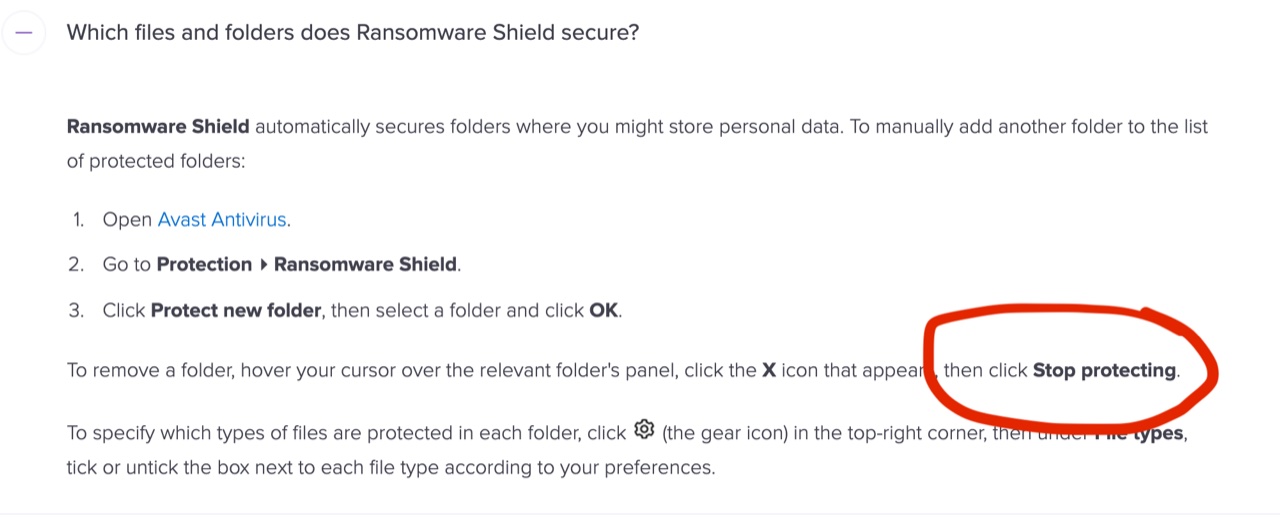
Oder verschieben Sie Ihr Fotoverzeichnis aus den von Avast überwachten Ordnern: Einstellungen → Anwendung → Fotoverzeichnis ändern → „Items“ (verschiebt die Fotos nach C:\WebshotsItems).
McAfee: Firewall- und Scan-Ausnahmen
Öffnen Sie McAfee → Firewall → Internetverbindungen für Programme. Suchen Sie Webshots und stellen Sie es auf „Vollständiger Zugriff“. Falls Webshots nicht aufgeführt ist, klicken Sie auf „Hinzufügen“ und navigieren Sie zu C:\Program Files\Webshots\Webshots.exe.
So schließen Sie Webshots vom Scannen aus: McAfee → Einstellungen → Echtzeit-Scan → Ausgeschlossene Dateien → Ordner hinzufügen → Ihr Webshots-Fotoverzeichnis (normalerweise C:\Users\[Ihr Name]\Documents\Webshots).
Norton: Firewall- und Scan-Ausnahmen
Öffnen Sie Norton → Einstellungen → Firewall → Programmsteuerung. Suchen Sie Webshots und stellen Sie es auf „Zulassen“. Falls Webshots nicht aufgeführt ist, klicken Sie auf „Hinzufügen“ und navigieren Sie zu C:\Program Files\Webshots\Webshots.exe.
So schließen Sie Webshots vom Scannen aus: Norton 360 → Einstellungen → Antivirus → Scans und Risiken → Von Scans auszuschließende Elemente → Konfigurieren → Ordner hinzufügen → Ihr Webshots-Fotoverzeichnis.